

Clear searchResults: X
What is an Escendant?
The Escendant app is designed to help you record and preserve your Engrams into a virtual representation of yourself – we call this your Escendant. Everyone who creates an Escendant can choose to keep it private, share some of it with friends and family or even the world.
What is an Engram?
An Engram is what we call each thought, idea and memory you save via the Escendant app. Typically an established user will have an Escendant that has hundreds, even thousands of Engrams.
How do I create an Engram?
Tap the big plus button in the main app navigation – this will open a list of options showing the different ways to create an Engram.
Most people will just chat with The Curator and once they have added enough content will publish that chat into an Engram
You can chat about what’s on your mind right now or an event from your past. We let you add an optional date and location to your Engram should you wish to search for it later via date or place.
1. Create an Engram – Simply chat with The Curator.
2. Answer the Question of the Day – The Curator will ask you a question, and your response will be converted into an Engram.
3. New journal entry – If you would like to create an Engram every day, then the journal system helps you track your activity with a calendar.
4. Create a Time Capsule – Time Capsules are Engrams that are released to others in the future. You set the release date and which sharing group will receive your Time Capsule. You can also set Time Capsules for release on your death.
What are Engrams in review?
Some Engrams are not created by you directly. When this is the case, these Engrams go into your review folder for approval, edits if required, and finally, saving. Typically, an Engram in review will be created by the Biographer during a chat, or it will be created by an email you sent to your “…@escendant.online” email address. You will receive notifications about any Engrams in review, but you can also find them on the Engrams overview screen by tapping the card titled “Engrams in review”. This card will be marked in red if it has any new Engrams requiring your approval. Any Engrams abandoned during creation will also typically be placed in the review folder.
What is face and voice simulation?
Face and voice simulation is an avatar and voice for your Escendant – ideally they should look and sound like you.
To create a face simulation tap on the top half of the purple, circular overlay in the middle of the homescreen. To give your Escendant an avatar upload a selfie image. You can now use your selfie as your Avatar or generate and use a stylised avatars from your selfie.
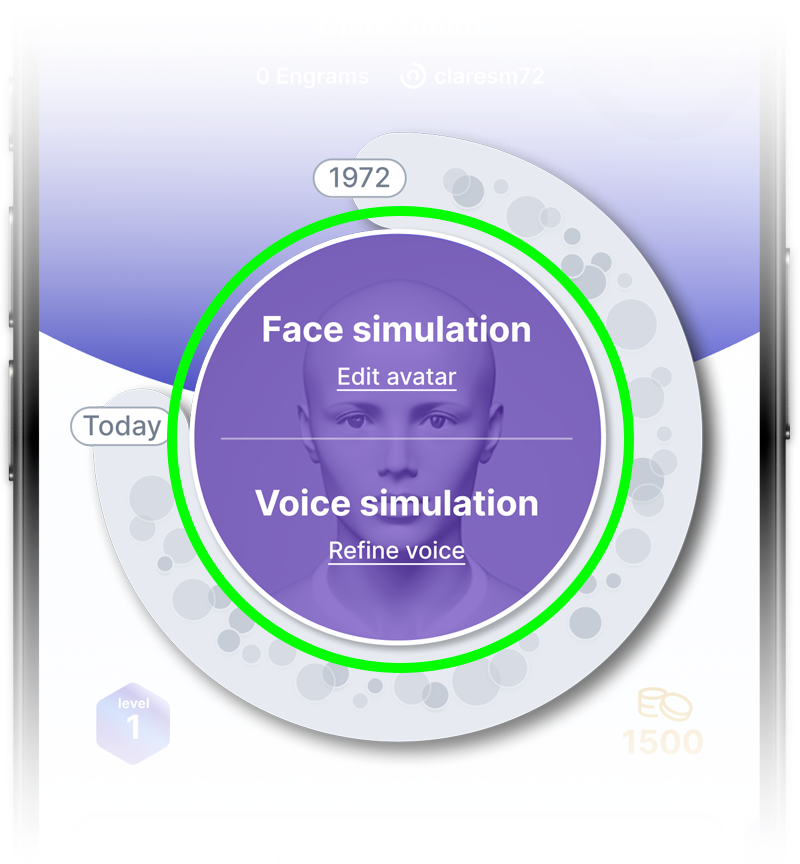
Voice simulation is much like face simulation, tap on the bottom half of the circular overlay to give your Escendant a simulation of your own voice. Once created a voice model will let others hear you narrate your own shared Engrams – if you wish. Add a recording of yourself speaking naturally, this will be used to generate your Escendants voice.
What is the ring around my avatar?
This ring is your timeline, with your birth year at the top and then moving clockwise to the current day. When you create an Engram a purple dot will be added to this timeline. The dots are approximate but you will see an increase in dot size and frequency for periods of your life where you have saved many Engrams. Any dots in the top left (9 – 12 o’clock) represent Time Capsules (Engrams set for future release).
All about Levels
Your level indicates how established your Escenant is. Certain activities in the app such as adding Engrams will increase your level. Other users can see your level in the Network and are more likely to chat if you’ve levelled up recently. Tap your level badge to see how close you are to bronze, silver, gold or even platinum.
What are credits and subscriptions?
All users are given some credits when they create an account. Most activities in the app cost you credits. All paid subscription users receive an allowance of credits each month which will expire at the end of that month – use them or lose them. If you run out of credits you can top up your balance by purchasing a bundle of credits, these top-up credits do not expire.
All account holders are given some credits and storage for free so they can explore the app. Monthly or yearly subscriptions can be purchased via the Subs and credits page.
Subscriptions give user a renewing credit allowance and an increased allocation of storage for storing all their Engrams. If you run out of storage you will need to increase your subscription level.
The main navigation
Along the bottom of most screens in the app you can see the main navigation. Tap on Engrams and you can see a directory of your Engrams sorted into categories.
Tap on Archive in the main navigation to view Engrams shared publicly or directly with you by your Connections in the app.
Lastly is the main navigation is the Network, a list of your favourite Escendants. These can be Escendants of people you know but also Escendants of other users that are sharing any of their Engrams publicly. You can also access your Connections and Trustees from the Network screen.
About Question of the Day
The Curator will ask you a daily question about yourself. Depending on your app settings you will receive a daily notification that once answered will be turned into an Engram.
What is the Network?
Discover and connect with other Escendants in the Network. Search for other users already using Escendant, this can be people you know or anyone that looks interesting. Tap the star icons of anyone your find to add them to your favourite list. Tapping on an Escendant lets you view their profile screen where you can view any Engrams they have shared publicly or with you directly.
If you find a user in the Network that you would like to share your Engrams with, a family member or friend for example then you can send them a Connection request.
Who are my Connections?
Connections are other Escendant users you are able to share your Engrams with directly. Connections are typically people you know in real life such as friends, family, or colleagues. You can invite someone already using Escendant to become a Connection with you. Connections are two-way, so once connected, they will have the ability to share Engrams with you, and vice versa.
When you can send them a connection invite to a current user. The invite screen will let you select which Sharing group you want your Connection in. The invite recipient will receive a notification of your Connection request, which they can then decide to accept or decline. If they accept, then they will have the opportunity to add you to their own sharing groups.
You can also share Escendant with anyone who is not already using Escendant. Tap the “Share an invite with someone new” button at the bottom of the Connection search screen to share an invite with someone.
You can disconnect from anyone at any time by tapping “Manage Connection” in the Connection list on the Connection overview screen.
Who are my Trustees?
The aim of Escendant is to preserve people’s memories – their stories. Trustees play a vital role in managing an Escendant account.
Ideally, a Trustee should know you well and be in regular contact with you, as their main role is to report your passing to Escendant. Once Escendant has officially confirmed a user’s death, their account will be visible to other users in the Nwtwork, but it will be marked golden to signify to others that the owner has passed away.
You can send a Trustee request to any of your Connections, and we recommend that all Escendant users have at least two Trustees in place. Trustee requests are made via the options modal for any of your Connections.
You can resign or remove anyone from your Trustee lists, but they will be notified when you do so, as Trustees play an important part in managing your Escendant’s legacy.
Can I block users?
Should you wish to, you can block other Escendant users via their profile screen. Tap the three dots on the top right of the screen and then tap “Block user”. Once blocked, you will not be visible to them in their Network and they will no longer be able to send you connection requests.
You can unblock users via the app settings on the home screen. Tap the settings burger menu (top left) > General settings > Blocked users. Tap “Unblock” on the user you wish to unblock.
Blocking and unblocking changes are not instant and can take approximately 24 hours to take effect.